If you're thinking about buying a BlackBerry Z30 that's currently on sale, I'd recommend you read this first.
TL;DR version: Dear BlackBerry, please fix your phones!
The full version (note: all of this was typed on a Z30):
TL;DR version: Dear BlackBerry, please fix your phones!
The full version (note: all of this was typed on a Z30):
Everyone thinks I'm crazy for carrying a BlackBerry during the age of Androids and iPhones. According to a recent article written on the verge, they claim that there is no good reason for someone to buy a blackberry right now. While I'm trying my best to not pay attention to my friends and the verge, I can't help but notice the little things that BlackBerry can do to get back in the game.
If you are considering buying a blackberry right now, do read this article to get a better idea of what you are buying. Unlike the people at the verge, I've actually used the z30 for a long time, so I think I'm in a better position to write about a review the that is fair and uninfluenced by random opinions.
First off, I'd like to mention the good things:
- Their on screen keyboard is excellent, and of course the hardware keyboard is second to none. In particular, I love the feature that allows you to swipe up to choose the next word, because the word predictions are excellent! It also seems to learn the phrases that you use the most, so you can simply swipe out the whole text message or email. So for example if you teach it the word supercalifragilisticexpialidocious then typing it in the next time is a whole lot easier! Supercalifragilisticexpialidocious!
But, try going to the home screen when the keyboard is active. You'll just end up swiping the space key on the keyboard instead, almost every time. I still do it after about two months of continuous use. This gets annoying pretty fast. It seems like BlackBerry are not using their own phones. It seems seems like they could have easily figured out a way to fix it through a software update. It is especially difficult to get out of chat apps like what's app and text messages.
I like the hub, because like Windows Phone, I find it convenient to see everything in one place.
The bad things:
I'm using a z30 right now, and although the screen is nice and big, it's actually a bit too big despite the fact that I have big hands! Given the trend of making big phone isn't going to slow down soon, it may in fact become the norm to have such phones. Nevertheless, the current UI that the OS has only makes it more difficult to use, especially if you are only using it with one hand. For example in many cases there is a cancel button at the very top end of the screen. You can imagine that reaching the top right corner of the screen when you're holding the 6" tall phone at the bottom (because you happen to be using the keyboard) is a rather challenging and frustrating. I would much rather prefer a phone that is the size of a z10 with the features of the z30 and only a slightly larger screen like 4.5". For the z30, the interface would have to be tweaked to allow a person to use the phone with one hand and not get a cramp or drop the phone.
Another problem is the inconsistency of the gesture based interface. For example you can use the swipe right feature for going back from a message to the main the hub, but you can't use the same gesture when you want to go back a page in the browser! Instead you need to hit a small back arrow. Also, swiping up form any app is supposed to push the current app up minimize the current app and put you into the multi-tasking active frames Window. But swiping up from the hub instead pushes the hub to the left and slides in the advice frames Window from the left. This gets annoying, and is almost impossible to get used especially when every other platform has a super consistent way of getting to the main apps screen.
A cool thing about the z30 and all other blackberry devices is their dedicated play/pause/voice control button between the volume up and down buttons. While this button allows you to quickly play and pause a song for example, it also has a pretty big flaw. Unlike iPhone buttons the force required to press the button is very small. As such, simply putting the phone in your pocket or removing it, or accidentally touching your pockets cam cause the play and pause button to be triggered. This is also a problem with the lock screen button. It's very easy to press accidentally. If you had the music player open because you were listening to a song earlier (or if you had a youtube video open in the browser), and you inadvertently depressed the play and pause button while your phone is in your pocket, music will start playing at full blast from the z30's pretty loud speakers (assuming you keep the speaker volume at high like I do) and you'll be forced to awkwardly remove the phone from your pocket and silence it! An possible fix for this is to make sure that the phone is fully unlocked before the play and pause buttons can be used, but who knows how long it is going to take blackberry to fix this?
Another thing that is rather frustrating is the half baked ability to use android apps. While many apps work, they often crash and are rather slow. BlackBerry definitely needs to do a better job of improving android app performance and "flow". For example a large bar with just a back button appears for every android app. Such bars don't appear for the same apps on android phones, so I'm not exactly sure why blackberry has hard coded these bars to appear in full screen apps such as game and Flipboard. Also, the inability to use apps from the google play store (or any apps that require a Google account) is rather disappointing. Other features like the voice control feature and the maps app just does not cut it in the world of Siri, Google Now and Google Maps. The alternatives from Apple and Google are leaps and bounds better. I'm not sure why BlackBerry was unable to strike out a deal with Google for Google Now and Maps for personal accounts, since I can understand that there would be concerns with privacy and such for corporate accounts. Furthermore, the android runtime that the upcoming version of the software is going to support (version 4.3) isn't the latest one released by Google (version 4.4) that was specifically optimized for low memory and faster execution. As such it doesn't look like running Android apps on a blackberry would make any sense until the near future. It seems to me that the only way BlackBerry can reach the "prosumer" market, as their new CEO John Chen puts it, is by making sure that their devices are equal to and better than the current devices on the market. If they are just different, and not markedly better, then I don't see why someone wouldn't just use android and iPhone devices all the time in a corporate environment, because after all the price for all devices seem to be the same.
One thing that bugs me is the small quirks the OS has. For example, sometimes it refuses to show the caller ID of a person who is in my contacts list, just because (seemingly) the number in my list did not have the country code. This is really unacceptable, because no other OS that I've used so far has this issue. If the number is in your contacts, you should know who's calling!
Also, if you had a message open in the hub, it takes you to the message you had open previously instead of the new message you got! This gets annoying really fast! You need to keep swiping back further and further to get back to the main hub. The phone seems to have some feature called the priority hub, but honestly, I'm not sure who decided to ship it, because the phone seems to thing that the most useless emails I've received are the most important. In either case, I think you should just let the user decide what's important. Another peeve I have about the hub is that if you happen to open text messages from the shortcut on the apps screen, you can "swipe right" repeatedly to reach the main hub, you need to select the main hub from a list of other message options.
Emails: while blackberries generally work well with email, on of the things that bother me is that even if I read an email on my phone it takes quite some time for it to update the server to say that the message was read. I've not experienced this issue with the iPhone, so I'm not sure why the blackberry seems to have this problem. Another feature that is sometimes useful but sometimes annoying is when drafts I'm working on show up as unread email messages in my hub. Yes, I know I'm working on a draft, no need to give me a new email notice! Perhaps this has something to do with my settings on Gmail, but no other platform I have used thus far has this problem. Also, there seems to be no way to archive an email in Gmail. Every other platform supports this feature, except BB10 apparently. I hope BlackBerry fixes these issues in the next release.
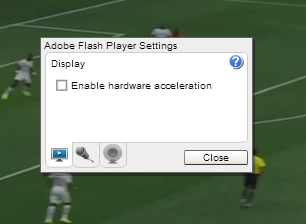
The browser, although plenty fast, keeps running out of memory for some reason, because if I have more than about 3 tabs open, going back to an older tab (or rather, a page that I had opened previously) it has to reload the page again. Furthermore, the flash player that the browser has is incapable of fluidly supporting many of the new flash video streaming technologies. For instance, I can't watch the world cup videos from CBC on my phone, live or otherwise. You might be saying that this is at least better than other platforms like the iPhone. But considering the fact that there was an app made for iOS that allows people to watch the games live on their iPhone. Of course, given BlackBerry's poor market share (even in its home country!), no such apps were made for BlackBerry 10. It is clear that iOS and android don't actually fare that poorly when it comes to live broadcasts of sporting events on mobile devices, despite the lack of Adobe flash support.
Similar to the case with Adobe flash, you may think that running Android apps on a Z30 at least should allow you to run a lot of apps. But again, this assumption is only true in theory. First off, you cannot run pretty much any app that relies on a Google account, and was made by Google. This includes Google Maps, Google Search, Gmail, Google Now and much more. With a recent OS update it is possible to download the installers for many of these apps, but the will complain about your Google account and won't allow you to use the app like you could on an Android phone. Furthermore, since all Android apps run on an Android virtual machine in the phone, the amount of system memory and processing power to run both the operating systems simultaneously just isn't enough. You'll only probably be able to run one or two android apps at a time, and if some app takes up a significant amount of memory, it will automatically be killed. As well, the apps take about 15 seconds to open, run really slowly and close themselves when you minimize the window or keep them in the background for so long. The TeamViewer from the Amazon app store for instance crashes quite often. Considering this, if you want to run android apps on your phone, just get a equivalently spec android phone instead! Most android phones have a better specifications than the blackberry phones out today, and more importantly also have a price that may be comparable.
The final issue with BlackBerry phones is their price. Considering the fact that a Nexus 5 is cheaper than a BlackBerry Z30 (if you buy a Z30 at full price), but has better specs in almost every department except battery life and call/audio quality and cellular reception connectivity. Plus, you get to use Google apps, and can access content from providers like the CBC. Unfortunately, unless you are an enterprise customer, or you can get a Blackberry on an employee discount, it isn't worth it to buy one at this point, unless they can come up with a product that is markedly superior.