Showing posts with label error. Show all posts

Saturday, 19 December 2009

Unable to create BootCamp partition with Snow Leopard

3 Comments
Recently I was trying to install Windows on my Mac to run SolidWorks (yes, it's Windows Only). However, for some reason, Snow Leopard's bootcamp assistant refused to create a partition for me. It kept saying:
The disk cannot be partitioned because some files cannot be moved.

Back up the disk and use Disk Utility to format it as a single Mac OS Extended (Journaled) volume. Restore your information to the disk and try using Boot Camp Assistant again.
I had created a Bootcamp partition once before with Leopard so I was puzzled when something Mac wasn't working! (Okay, no, Apple's computers are just as fallible as other computers). And there was no was I was going to go through formating the hard drive again, installing Windows would take long enough!

However, after trying several different things I was finally able to get Snow Leopard to partition the hard drive so that I could get Windows 7 to work. I'm not sure what worked, but I'm pretty sure that others are likely to have similar problems, which is why I took the time to write this post.

Friday, 25 September 2009

Unable to find an application to support "mailto" navigation

0 Comments
While using Windows 7 (professional edition) I ran across this little bug that might cause you a lot of grief. The reason I ran across this bug was because I was trying to use Microsoft Groove to send "my contact info" via e-mail. However the error kept coming up whenever I tried to use the "mailto" link in groove.

I'm also assuming that this is the case for any mailto: link that might be in an address across the operating system. This error has most likely resulted because Microsoft decided to ship Windows 7 (which most people will be getting on October 22nd by the way) without a mail client. Therefore, Microsoft presumed that people will download Windows Live Mail or something else like Thunderbird for their e-mail needs.

Sunday, 21 June 2009

(k)Ubuntu with compiz has lines on screen after rebooting from hibernation or suspending

0 Comments
Interestingly enough, I ran into another problem while using Ubuntu yesterday. I was using my laptop for a while, without the power cord, and I got a message from Ubuntu saying that my battery was about to die out. So, I promptly decided to hibernate my computer for the night and then plug it back into the power cord once I found it in the morning.

Finally, I woke up today morning, found the power cord, plugged it in and started Ubuntu. Sure enough, everything worked great. Ubuntu read the 'waking up the computer' message while it was booting and once if finished booting, it asked me for my password (although I have automatic login turned on, I guess it doesn't apply to login after wake up from hibernation or suspension) and after typing it in ... Ubuntu opened my desktop, just as I had left it the night earlier.

However, the first thing I noticed after booting in was the lines or I suppose you can call them artifacts that appeared around the screen where the "compiz reflections" were supposed to be. So even when I opened a tool tip, all I'd get were lines. As shown below:

click picture to enlarge it and see the lines around the windows, desktop and tooltip.

I'm guessing that this is a video card problem or a compiz coding problem. It might also happen after you wake up your computer after suspending it. Although I realise that suspend might not be the same as hibernate, and even after repeatedly trying to reproduce the problem, it might occur after suspension. Nevertheless, I'm going to include the possibility and mention it in this post, in case someone else out there is experiencing the same problem.

Anyway, fixing the problem is simple. Restart compiz. Once you restart compiz, your screen will flutter for a second and then fix the lines that occur without changing anything else on your computer.

How to restart Compiz

Update/Tip: Turns out you can also do this by pressing Alt + F2 and typing in compiz. Then just click run and compiz should restart...
  1. Press Alt + F2
  2. Type in: gnome-terminal
  3. Type in compiz in terminal
  4. Wait for a second and let compiz restart
  5. Quit terminal
Once you restart compiz, you can then go back to playing with the wobbly windows without the weird lines.

Saturday, 31 January 2009

"This site may harm your computer" Google Bug

2 Comments
Today morning, as usual, the first thing I did after I sat on my computer was to search for things (in this case a wallpaper or picture from which I could draw inspiration for a website that I was working on...). However, something interesting happened. Instead of going directly to the images or search results, I'd get the "This site may harm your computer" message from Google.

No matter what site I tried to search for, or what the website was (even some of google's own websites come up as 'Malware' for some reason) I am constantly getting the problem. Of course, even this blog was listed as 'potential malware' for some reason. [Update: The problem seems to have fixed itself now, in about 5 minutes after I encountered it. Therefore, it is safely possible to assume that if you experience the same problem, just wait for a while till some Google engineer does some script-fu with the servers and makes things alright]

Clearly, there is some kind of problem with either the google server or my Internet connection. I'm thinking that it's most likely the former. Or, could it be that Google just hates me because I use it so much and rarely click on any ads?

Don't believe me? See for yourself. And no, these screenshots have not been retuched in any way, shape or form.


Something tells me that some one might be getting yelled at as I type this.

Monday, 25 August 2008

This patch package could not be opened error

2 Comments

What is it with me and errors? They just seem to be never ending whenever I switch to my Windows XP/Windows Vista Machine. Although there is no one to blame, given the huge amount of work that goes into developing an operating system and applications that function properly on that particular operating system, perhaps someone needs to come up with a better way of doing things?

As we advance forward in technology by leaps and bounds, we should be able to change and optimize the way we work on our computer and right now, just using the old way doesn’t seem to cut it for me. At least, whenever I’m using Windows.

Anyway, as I was frantically trying to open Windows Live Messenger (couldn’t the name be a bit longer like Microsoft® Windows ® XP Live Messenger Eight Point Zero Beta Alpha Gamma?) it turned out that nothing was happening, I opened up Task manager – nothing going on there. I tried to close all my applications and open Windows live messenger – still nothing. Then finally after waiting for a while, I decided to try using Control Panel to perhaps try uninstalling the product and reinstalling it again.

After I clicked on the “Remove” button in the “Add or Remove” area of the control panel. I even tried to repair the application (you can actually click on the link that says “click here for support information” and click the repair button to try and repair the application). The error that was returned to me was:

---------------------------
Add or Remove Programs
---------------------------
This patch package could not be opened.  Verify that the patch package exists and that you can access it, or contact the application vendor to verify that this is a valid Windows Installer patch package.

---------------------------
OK  
---------------------------

Okay, so I completely ignored the message, which is very unlikely to occur in the future, and tried to reinstall Windows Live Messenger. But turns out, even that installer couldn’t fix the installation and returned an error. Confused

Great! It was then a case of Internet to the rescue. After a quick search I noticed that according to the knowledge base article the installer must have gone corrupt, somehow. And it recommended the following steps:

How to get rid of package could not be opened error

1. Download the Windows Install Clean-up utility from Microsoft

2. After you install it, click Start > All Programs > Windows Install Clean up

3. Find the installer pertaining to the application that’s giving you problems (in my case it was the Windows Live Messenger Installer)

image

4. Click on Remove to remove the installer

5. Reinstall the application

Finally, after spending half an hour for a simple solution, I was able to fix the problem. I hope someone else doesn’t have to loose this precious time. If any one has any other suggestions or comments, please post them below. I’d like to know who else thinks this is complete waste of time. Whew

Wednesday, 30 July 2008

The device driver for your network card is preventing PC from entering standby or hibernation

1 Comments

I recently discovered another problem that comes up often when you update your computer to Windows XP SP3. It seems as though you can’t put the computer into standby because somehow a network card prevents it from going to bed. Turns out, you now have to tell Windows XP that it can turn off the card to save power. Here’s how you can stop the computer from giving your errors when you put it into standby or hibernation. In addition to that, you can also prevent your computer from loosing the wireless connection when it resumes from standby or hibernation mode.

First, click on Start and then click Run. Of course, you’ll need administrator privileges to be able to do so. Then type in

ncpa.cpl

image

And in the window that comes up, right click on your wireless network card or network card in use at the moment. It’s usually going to have the blue monitors, if you have more than one network card, you’ll have to right click on the one that bears the word ‘wireless’ in its name. Then click ‘Properties’.

image

In the properties window, go to the ‘General’ tab and click Configure'.

image

Click the Power Management tab and uncheck the box that says Allow the computer to turn off this device to save power and click OK.

image

Once you do this, also click OK in the properties windows, and now your wireless card will play nice with the operating system. So, when you wake up your computer from standby or hibernation, it’ll make sure your card is able to go out and talk to your router (i.e. stay connected with the router) and it’ll also allow your computer to go into standby mode or hibernation mode without causing any errors.

Monday, 19 May 2008

Opening IE 6 redirects you to IE 7 website

0 Comments
Has your homepage automatically changed to the "Internet Explorer Get it Now" download webpage? Well, you're not alone. Many others who are on Windows XP (or like me are using it on a Virtual Machine) and still using Internet Explorer 6 are getting the same message. Is this a virus or something you ask? Well, not really it's just that IE is letting you know that an upgrade to Internet Explorer 7 is ready because of you're settings. Before you change these settings, I would like to point out that it would be a good idea to update your browser or get Firefox, and make sure you have the latest in order to ensure the best security and proper standards.

Ok, I don't really care about updating - how do I change it back to my normal home page?

Well, going back to your normal home page is quite easy. Simply click on Tools in IE, then click Internet Options. Once the window pops up click on the Advanced Tab. Under Browsing, uncheck Automatically check for IE updates.
Once you do this, your normal home page will magically appear when IE is launched. Keep in mind though that by using IE 6 you are depriving yourself of a better experience on the web and putting your data at risk. Make sure your upgrade or let your nearest IT guru know that you want to upgrade to a better browser.

Firefox does not start up or crashes as soon as it starts

0 Comments

Have you been having problems with Firefox not playing nice with your system? Chances are, you probably installed a Firefox add-on that is causing Firefox to act up and not load. Well, let me assure you that this is normal, especially for people like me who love to install a plethora of add-ons. Sometimes, Firefox might even crash right right after you open it, and give you an error why it could not open. This too can be fixed quite easily. By using the method I mention below, it is also possible to fix the Firefox search bar, get rid of any add-on that might be causing the browser to crash etc. I'll try to cover the most common scenarios below, but if any of them don't work, be sure to drop me a line and I'll try my best to help out!

Open Firefox in Safe Mode and Disable Add-ons

Chances are that Firefox is suffering crashes because of an add-on you installed. The first thing you should try is diable any add-ons that you installed recently. If it is not possible for you to even access the add-ons window, then you'll have to open Firefox in safemode and disable add-ons.

Instructions on how to use the safemode are properly documented on this MozillaZine wiki page. Once you start up Firefox in safemode you should see the following window pop-up.

Simply check disable all add-ons and then click Make Changes and Restart. This should disable the add-on that is causing Firefox to crash. Then if Firefox starts up fine, you can access the add-ons window and experiment a little bit in order to find out the culprit. Once you find the extension that is behaving badly, simply uninstall it and Firefox should work perfectly find from then on. If not, read on.

Create a new Firefox Profile

If the above method doesn't fix the problem the problem probably exists in your user profile. Firefox maintains a user profile of every user and chances are that it has gone corrupt. If that's the case then simple follow the managing your profiles guide and create a new one. If the new one works perfectly fine, then you might have to export your settings from your old profile to the new one with the backing up your information guide.

Apart from that there isn't much you can do except back up everything, and start a new with a fresh install of Firefox (and hopefully not a fresh install of Windows if you happen to be on Windows).

Tuesday, 25 December 2007

How to use Hotmail with Apple Mail

44 Comments
Update: If you're using HTTPMail with Leopard 10.5.6 - You'll have to upgrade to HTTPMail 1.53 for it to work! Click here to download HTTPMail 1.53. No wonder, my hotmail stopped working on Apple Mail after I upgraded to 10.5.6 =( ... But its all fixed now... =)

I absolutely love Apple Mail because of its simplicity and to an extent it's robustness (the To-Dos and Notes) and use it all the time when possible. I find that Entourage is a bit too bloated, and the same goes for Thunderbird. Plus, other applications don't have iCal integration, which is another application I have come to love. However, one big problem is that by default Apple Mail does not support Http accounts, so it's impossible to use mail if you use Hotmail or MSN (now apparently called Windows Live Mail). The solution was created by Daniel Parnell fit the bill. It's called HTTPMail. You can find it over at the Automagic Software downloads page.

Once you download and install the plugin, you should be good to go. Simple enough? Not really, it's Microsoft stuff, and as I've come to find out, Microsoft stuff isn't exactly simple. Yet. When I tried to send an e-mail through my Hotmail account in Leopard, I got an " *** -[NSURL initWithString:relativeToURL:]: nil string parameter" error. But, using Microsoft software for so long has taught me something - never give up. So I set out to find a solution, and finally after a couple of minutes of thinking I figured, it must be the URL, since the error had URL in it. Turns out, that you need to use some other URL to send the mail. The steps I took to solve the problem were as follows:

How to stop *** -[NSURL initWithString:relativeToURL:]: nil string parameter error

  1. Open Mail
  2. Click on Mail (in the menubar) > Preferences. Alternatively, you can press Cmd + , to open the preferences dialog
  3. Click on Accounts and select your Hotmail Account
  4. Where it says Outgoing Mail Server (SMTP) click on the drop down menu. Then click Edit Server List...
  5. Create a new entry as shown in the picture below. Make sure to use the server name oe.msn.msnmail.hotmail.com
  1. Switch to the Advanced tab for a sec and make sure it says port 25
  2. Then Click on OK
  3. I recommend you check the box that says Use only this server under the Outgoing Mail Server drop down Box
  4. Close the preferences dialog box. If you asks you if you want to save your settings, make sure you say save
  5. Send your Mail (I'm guessing you already have mail in your outbox, or else you wouldn't know about the error) through the Hotmail (or whatever description you put in) server you just created.
Hopefully, you'll now be able to send your e-mails through Apple Mail. Now you'll be able to send and receive e-mails through your Hotmail account without having to use the inelegant web-mail interface.

Tuesday, 16 May 2006

What is Sysfader.exe and how to stop sysfader errors

68 Comments

What is sysfader.exe?


Well, no first of all, it is not spyware (usually... click here to check if its spyware or not »). In fact it is a part of Windows XP that provides all the so called "cool animation effects". These include fading menus in and out. Animating windows and so on. However, the fact is that you don't need sysfader on your computer. You're better off without it, especially if you're getting a lot of 'Sysfader.exe has crashed' errors or if your computer is running slow. Even if you don't think it's slow I recommend you read the whole article below.
Important: Make sure you take a look at how to figure out if sysfader is a virus or not and find out if the sysfader.exe you are seeing is a virus/spyware or if it's the real deal.

I also read a couple of e-mail from people telling me that they had an error regarding sysfader.exe. I'm guessing that this might be a common problem for a lot of people, besides the tips mentioned in this post are good for any computer running Windows. Be it Windows XP or Windows Vista (although the instructions for disabling unnecessary effects are different for Vista).
Note: Please see an alternate way to fix sysfader.exe problem in this post »

To get rid of this problem all you need to do is this:
  1. Press Windows Flag (Windows Key) + Pause break key. If you don't have the Windows key (most keyboards should have this - right beside the Alt key) just right click on My Computer and click Properties.
  2. Go to the 'Advanced' tab
  3. Under 'Performance' click on 'Settings'
  4. Under the 'Visual Effects' tab uncheck the first four check boxes
  5. These 4 boxes are "Animate windows when minimizing and maximizing", "Fade or slide menus into view", "Fade of slide ToolTips into view" and "Fade out menu items after clicking". Please note that if you are running other localizations of Windows XP (for example Windows XP Portugese) you have to find the options that somewhat describe the options mentioned above, since they might not be the first 4 options.
  6. To make your computer even more faster, uncheck other checkboxes for the effects that you feel you can live without, for example "Slide taskbar buttons" etc...
  7. If you like your Windows XP theme the way it is don't uncheck the last option that says "Use visual styles on windows and buttons". I also recommend you leave the "smooth edges of screen fonts" and "Use common tasks in folders" options unchecked"
  8. If you don't use a wallpaper then I recommend you also uncheck "Use drop shadows for icon labels on the desktop"
  9. Click on 'OK'
After doing this the problem with sysfader should instantly go away (hopefully). And your computer is going to become much more faster without those annoying (at least I find it annoying) effects slowing it down. Please read other articles on how to make windows xp faster if you want to make your computer faster, and get rid of other .exe errors with windows that seem to happen oh so frequently.

Thursday, 4 May 2006

Firefox - The Blinking Cursor Problem

319 Comments
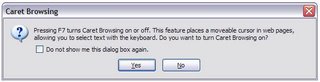
Quick Answer: Press the F7 key, and turn off Caret Browsing

Long Answer:
Recently I was reinstalling Firefox, because I was trying to check if reinstalling it is going to ruin my profile (like it did last time) or not. After all that was done and I opened up Firefox and went to browse around I noticed that the cursor started blinking on the screen.

Now, since I've played around quite a bit with Firefox, I didn't panic because I instantly knew that it was a feature called 'caret browsing' (not really... :) it took me a while to figure out what in the world it was!). The main reason that Firefox has this feature is that you can select text with your keyboard.


If you want to get rid of this the solution is simple... press F7 (or read the next paragraph if you are on a mac and your F7 key is mapped to something else.. if you press F7 it should work on your mac too but just in case it doesn't)! And if you want to turn it on again then you need to do the same as well. So now when you see blinking cursors on the screen when you are browsing through web pages don't freak out... it's just caret browsing.

Oh and as Long Island Nurse points out, pressing F7 isn't the only way. You can also type in "about:config" in the address bar and then type in "caret" in the filter box and simply double click to change the option from "true" (which means turn on caret browsing) to "false" (which means turn off caret browsing). Thanks Long Island Nurse!